Link KACE Cloud with Apple DEP
Prerequisites
Apple Business Manager (ABM) is the portal for Apple DEP enrollments. This step helps you link KACE Cloud with Apple DEP using the ABM portal. Start by downloading your public key from KACE Cloud. When you log in to your Apple DEP subscription in ABM, configure one or more MDM servers that you want to use for KACE Cloud enrollments. If you work for a large company with multiple divisions, and each division has its own MDM solution, you can see multiple virtual MDM servers listed in your ABM account. Each one can be linked to a separate subscription in KACE Cloud or to a different MDM product.
Then, upload the KACE Cloud public key file to associate your MDM server in ABM with KACE Cloud. You can also specify the default MDM server for enrolling different device types. This feature allows you to have more flexibility when it comes to managing the enrollment process. With the ability to select a default MDM server for individual device types (iPad, iPhone, iPod, mac, Apple TV), each device type can have its own specific profile that is managed in KACE Cloud.
When you finish configuring your MDM servers, download the server tokens from ABM and upload them to KACE Cloud. Each server token links KACE Cloud to the appropriate MDM server. This enables KACE Cloud to be aware of the devices in Apple DEP so that you can configure the DEP profile and control the activation process. This file exchange is the “handshake” that introduces the two products to each other. These keys are also used to encrypt the Apple DEP data during the exchange, in addition to the HTTPS protocol. After you upload the token to KACE Cloud, KACE Cloud displays the Apple DEP information for your organization. There is an asynchronous update that launches in the background and refreshing this page shows the Apple DEP device count once this process is complete.
To link KACE Cloud with Apple DEP:
-
Download the public key from your KACE Cloud subscription.
- In KACE Cloud, select the Settings tab in top navigation.
- Select Apple Settings > Device Enrollment Program (DEP).
- Click Download MDM Public Key (.pem file).
- Upload the downloaded public key file to ABM (.pem file), and download a token from ABM for each MDM server you create (
.p7mfile).- Go to Apple Business Manager and sign into your organization's account using the corporate Apple ID. The account must have the Administrator or Device Enrolment Manager role.
Configure one or more MDM servers for KACE Cloud.
You may see an entry in this list already.
To add a new MDM server in ABM:
- Select your account name at the bottom, click Preferences, then click MDM Server Assignment.
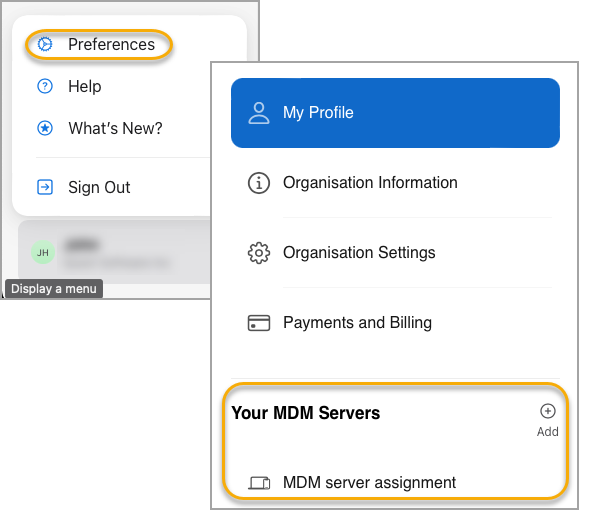
- Click Add, then type a unique name for the MDM server.
We recommend something simple—the name is only for your use.

- Upload the public key certificate file that you downloaded from KACE Cloud, then click Save.
- Click Download, then click Download Server Token.
- Repeat these steps for any other MDM servers that you want to create, if applicable.
- Select your account name at the bottom, click Preferences, then click MDM Server Assignment.
- Specify the default MDM servers for enrolling different device types (such as iPads, Apple TVs, and so on).
- In ABM, in the Default MDM Server Assignment area, click Edit.
- For each device type, select a desired MDM server.
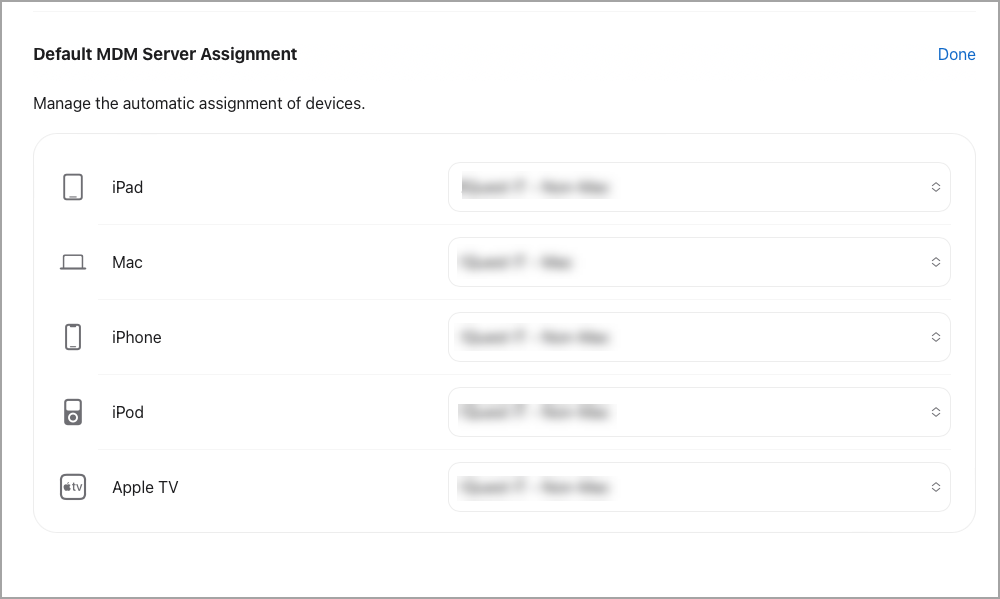
When you finish, click Done.
- Upload the MDM server token from ABM (
.p7mfile) to your KACE Cloud Apple DEP enrollment instance.- In KACE Cloud, select the Settings tab in top navigation.
- Navigate to Apple Settings > DEP Enrollment.
- In the Apple DEP Enrollments area, click Select Server Token, and upload the downloaded
.p7mfile. - Click Upload Server Token.
When the server token uploads, the new server information will be visible in the Apple DEP Enrollments section. An administrator can then manage DEP profiles, sync new devices to profile, and unlink KACE Cloud from DEP.
- Repeat these steps to upload any additional MDM server tokens, if applicable.